
Plugins
WooCommerce
Accept MPESA payments (STK Push) and other methods via Kiotapay in your WooCommerce store.
Installation Guide
No coding or custom development is required.- You can find and download the latest version of the WooCommerce plugin HERE
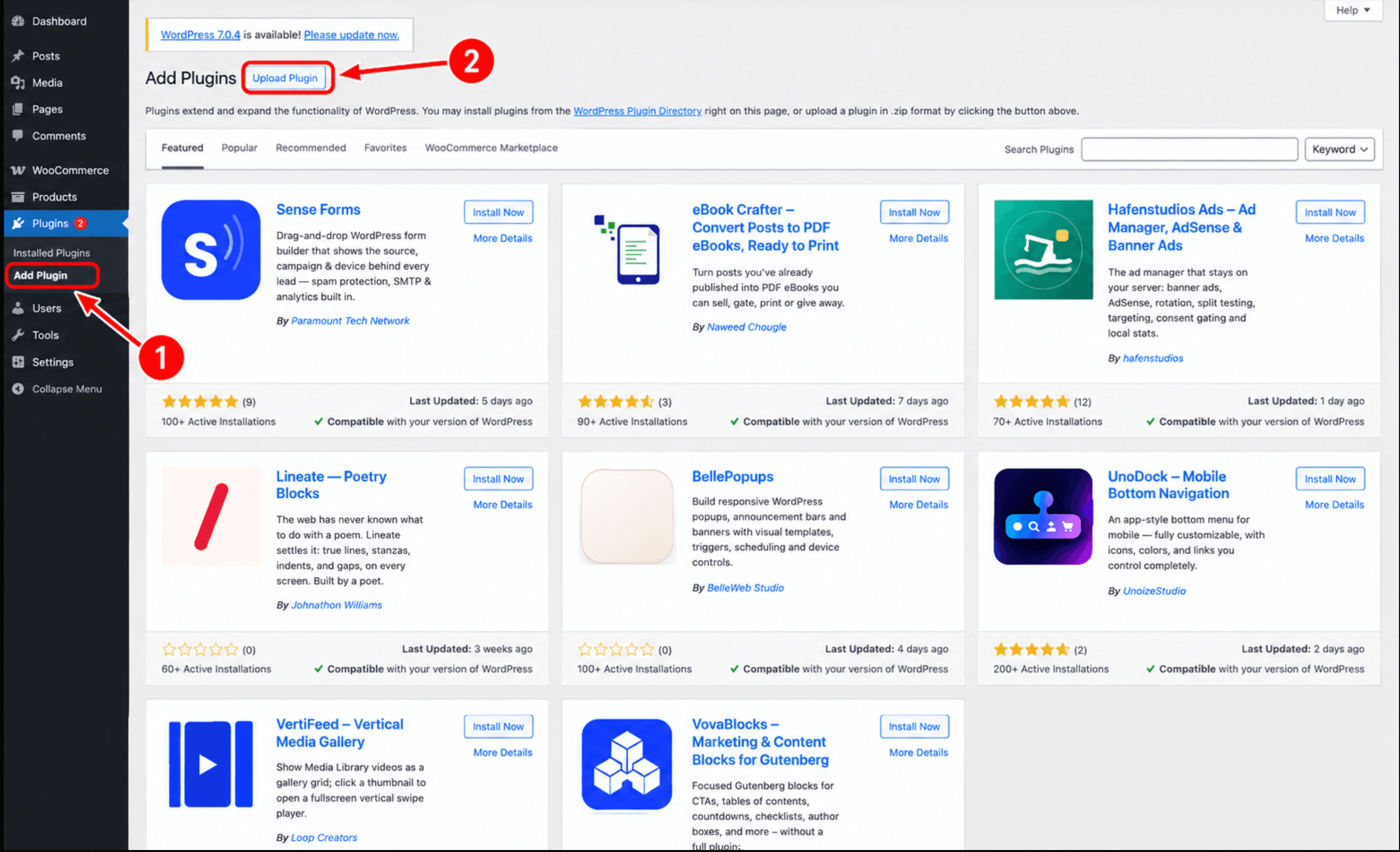
- Login to your WordPress admin dashboard
- On your left sidebar under Plugins click on Add New Plugin
- On the top left click on Upload Plugin
- Upload the downloaded file
- Click Install Now then Activate Plugin
Configuration settings
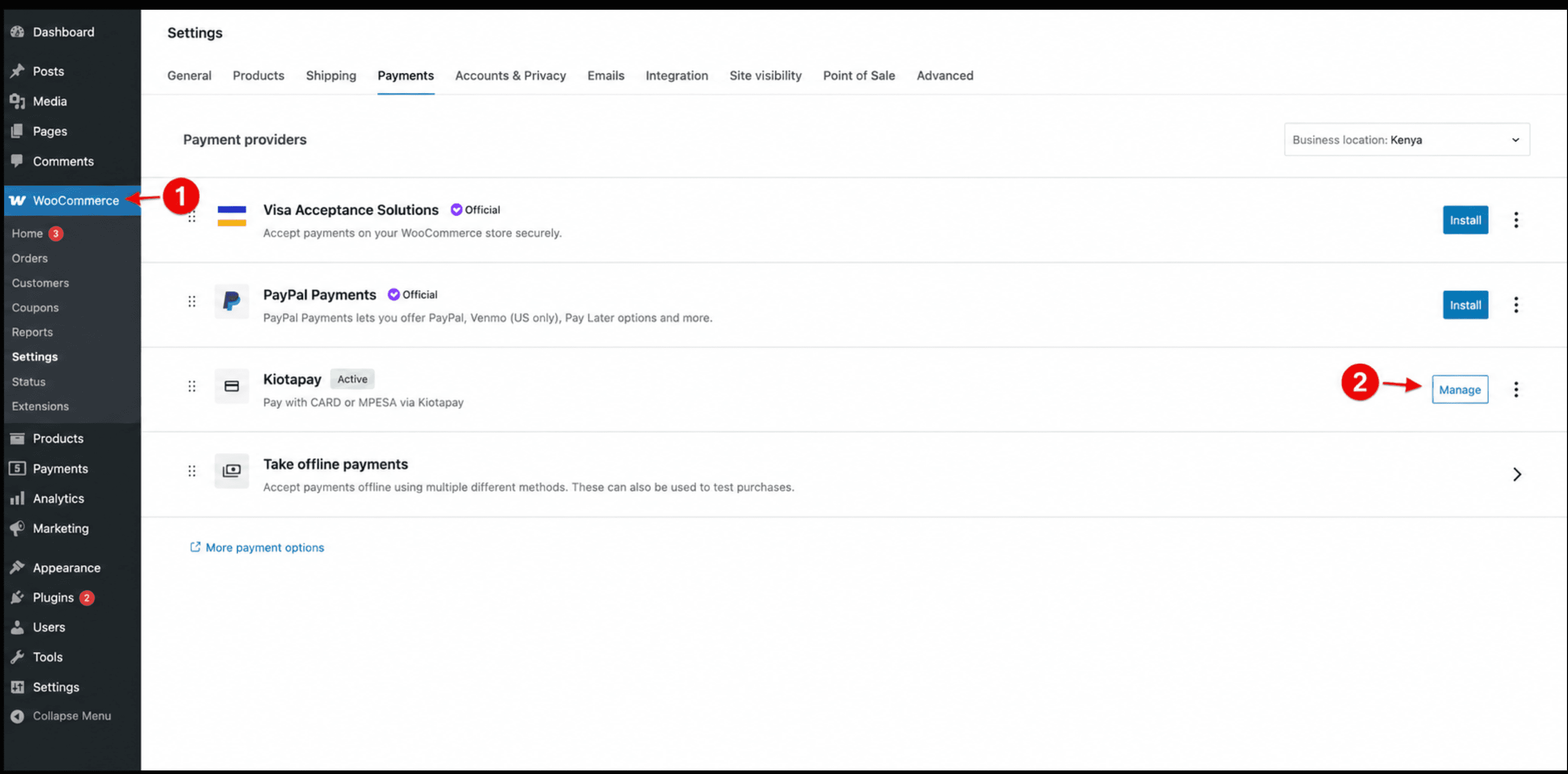
- In your wordpress admin dashboard navigate to WooCommerce settings page(sidebar)
- Navigate to Payments tab
- Among the listed Payment options, find Kiotapay then click Manage
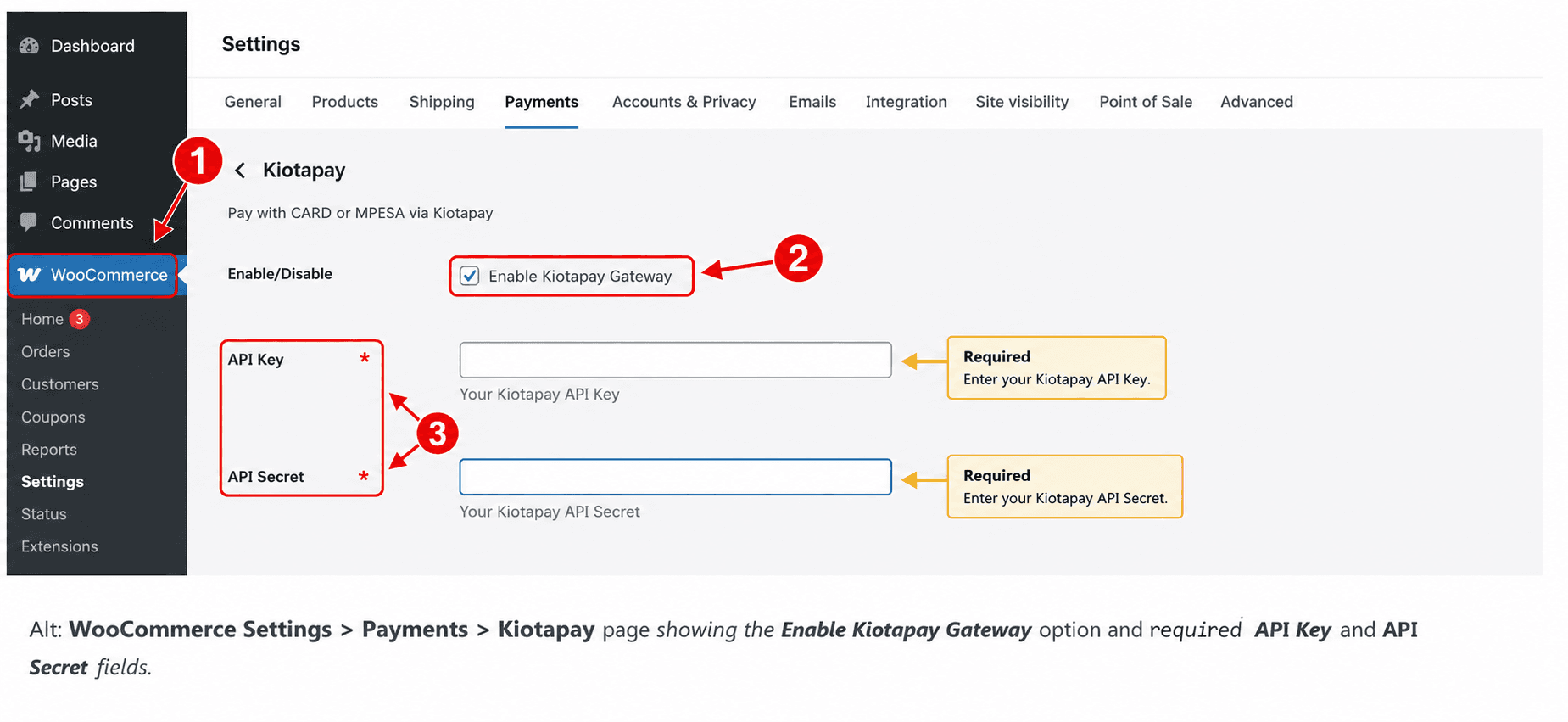
- On the Kiotapay Settings page, ensure you check the Enable Kiotapay Gateway option
- Enter you authorization tokens. (Provided by Kiotapay)
KRA eTIMS fiscalization
If you need to fiscalize orders with KRA eTIMS, the plugin can generate a TIS-compliant tax invoice through the Kiotapay KRA integration service and attach it to order emails automatically.
- In your WordPress admin dashboard, navigate to the plugin's settings page and find the KRA eTIMS fiscalization section
- Check Enable eTIMS to turn on fiscalization for paid orders
- Fill in the following fields:
| Field | Description |
|---|---|
| eTIMS service base URL | Base URL of the Kiotapay KRA integration service, e.g. ... |
| Tenant ID | Your tenant UUID on the KRA integration service |
| Branch ID | Your KRA branch identifier (defaults to 00) |
| eTIMS API key | The X-API-Key issued by the KRA integration service — this is separate from your Kiotapay payment API key |
| Default tax type | Used when neither a product's eTIMS override nor its WooCommerce tax class resolves a type. Applies to standard-class products, shipping, and fees |
| Default item classification (UNSPSC) | Fallback UNSPSC code for products that don't have one set; also used for shipping and amount-only refunds |
| Refund reason code | The KRA rfdRsnCd sent with credit notes |
Keep your eTIMS API key separate
The eTIMS API key is distinct from the Kiotapay payment API key you used during checkout setup. Treat both as secrets — never expose them in client-side code or a public repository.
- Save changes. Once enabled, every paid order will be fiscalized automatically and its tax invoice attached to the order confirmation email.
Additional Settings
Enable Test Mode – for sandbox transactions
Customer Payment Flow
- The customer adds items to their cart
- At the checkout they select Kiotapay as the payment method
- They're redirected to a secure Kiotapay Payment page
- After successful payment, they'll be redirected back to WooCommerce with a confirmed order.(status: Processing)